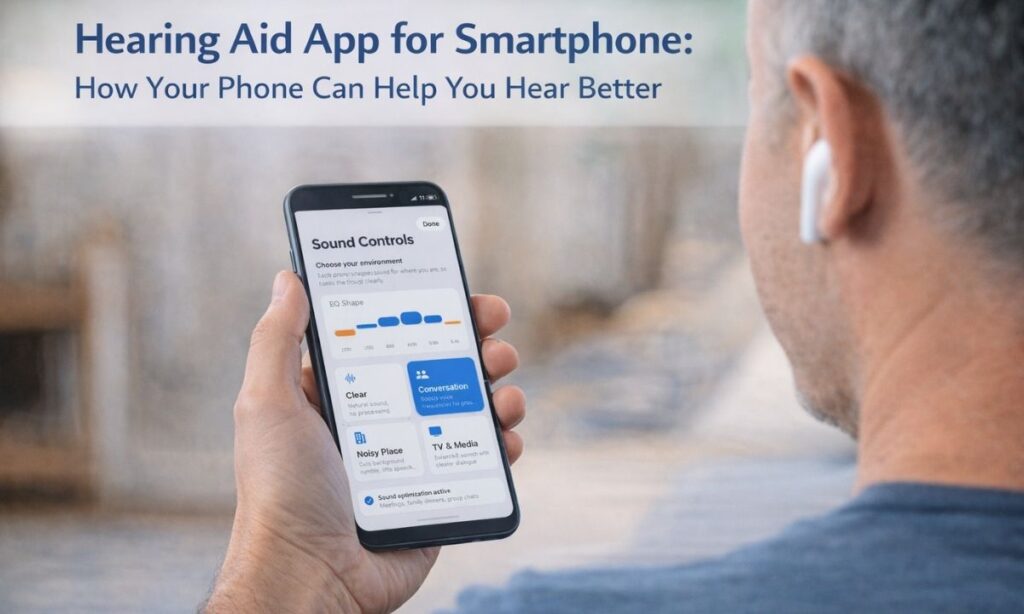
You asked someone to repeat themselves three times today. Maybe four. And somewhere in the middle of nodding along, you wondered – is there a simpler way to fix this?
Not a $3,000 device. Not a doctor’s appointment. Just your phone.
That’s exactly what this article is about.
What Is an iPhone Hearing Aid – and Is It Even Real?
Yes, it is real.
Your iPhone has built-in hearing aid support that most people never discover. Apple designed it quietly, tucked it inside Accessibility settings, and millions of users scroll past it every day.
An iPhone hearing aid is not a physical device. It is a combination of:
- Built-in iPhone settings that connect and control hearing aids
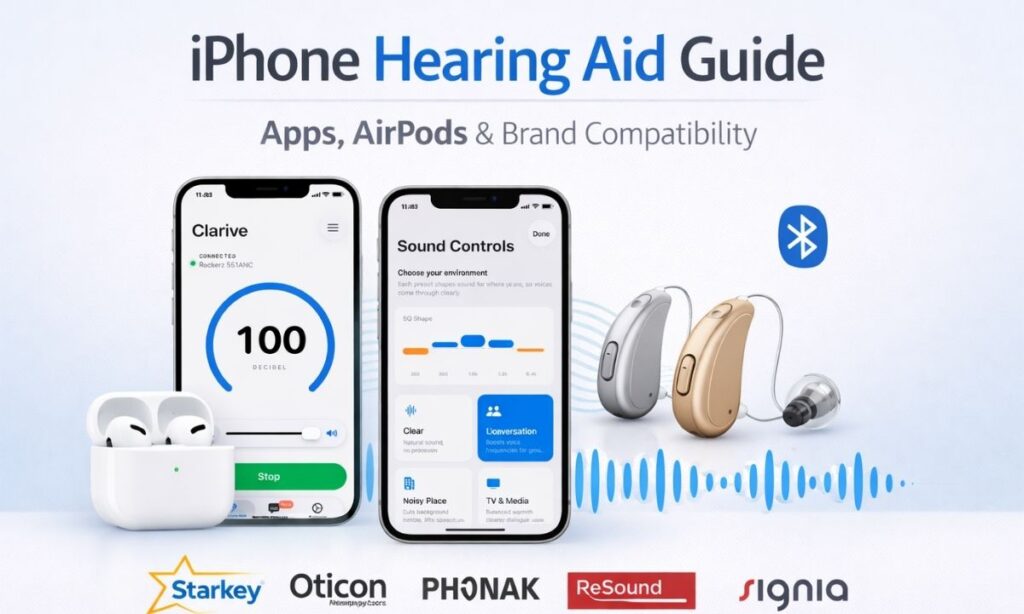
- Made for iPhone hearing aid compatibility with branded devices like Starkey, Oticon, Phonak, ReSound, and Signia
- Apps that turn your phone into a sound amplifier with live captions
Whether you already own a hearing aid or you are looking for a simple app-based solution, your iPhone can support you in ways you probably have not explored yet.
iPhone Hearing Aid Settings – Where to Find Them
The most common question people ask is: where is the hearing aid setting on iPhone?
Here is exactly where to look:
Go to: Settings → Accessibility → Hearing Devices
This is where your iPhone hearing aid settings live. From here you can:
- Pair your Made for iPhone hearing aid via Bluetooth
- Adjust hearing aid volume directly from your phone
- Control left and right ear settings separately
- Stream audio from calls, music, and video straight to your hearing aid
If you do not see your hearing aid listed, check that Bluetooth is turned on and your hearing aid is in pairing mode.
What Is Hearing Aid Compatibility on iPhone?
iPhone hearing aid compatibility means your device meets specific standards to work with hearing aids – both wirelessly and through the microphone input.
Apple uses two ratings:
- M-rating – reduces interference with hearing aid microphones during calls
- T-rating – works with hearing aids set to telecoil mode
You can check your iPhone hearing aid compatibility setting in Settings → General → About → scroll down to Hearing Aid Compatibility.
Apple iPhone hearing aid compatibility is built into every modern iPhone model. If you have an iPhone 6 or newer, you are already covered.
Made for iPhone Hearing Aids – Top Brands That Connect
Made for iPhone hearing aid technology allows certain hearing aid brands to connect directly to your iPhone – no extra adapter, no complicated setup.
The top compatible brands include:
- Starkey iPhone hearing aid – known for its smart features and app control
- Oticon – pair your Oticon hearing aid with iPhone through the Oticon ON app
- Phonak – connect your Phonak hearing aid to Bluetooth iPhone via the myPhonak app
- ReSound – connect your ReSound hearing aid to iPhone through the ReSound Smart app
- Signia – connect your Signia hearing aid to iPhone using the Signia app
How to Pair a Hearing Aid to iPhone
Here is a simple step-by-step process that works for most brands:
- Open your hearing aid battery door, then close it to put the device in pairing mode
- On your iPhone go to Settings → Accessibility → Hearing Devices
- Wait for your hearing aid name to appear on screen
- Tap the name and select Pair when prompted
- Repeat for the second hearing aid if needed
Once paired, you can control volume, switch programs, and stream audio all from your iPhone.
How to Connect Specific Hearing Aid Brands to iPhone
How to Pair Oticon Hearing Aid With iPhone
- Put Oticon hearing aids in pairing mode by opening and closing the battery door
- Go to Settings → Accessibility → Hearing Devices
- Select your Oticon device when it appears
- Tap Pair on both prompts that appear for left and right ears
How to Connect Phonak Hearing Aid to Bluetooth iPhone
- Open the myPhonak app and create an account
- Put Phonak hearing aids in pairing mode
- Follow in-app instructions to complete the Bluetooth connection
- Once connected, use the app to adjust settings and volume
How to Connect ReSound Hearing Aid to iPhone
- Open and close the battery door on your ReSound hearing aid
- Go to Settings → Accessibility → Hearing Devices on your iPhone
- Tap your ReSound device name when it appears
- Accept the pairing request
To connect your ReSound hearing aid to your iPhone again after a reset, simply repeat these steps.
How to Connect Signia Hearing Aid to iPhone
- Download the Signia app from the App Store
- Open and close the battery door to activate pairing mode
- Follow the app setup steps to complete the Bluetooth connection
iPhone Hearing Aid AirPods – Using What You Already Have
You do not always need a branded hearing aid to get support from your iPhone.
iPhone hearing aid AirPods mode – officially called Live Listen – turns your AirPods into a remote microphone. Here is how it works:
- Place your iPhone near the person speaking
- Sound streams directly into your AirPods in real time
- Works in noisy rooms, across a table, or in a classroom
To turn on Live Listen:
- Go to Settings → Control Center → add Hearing
- Open Control Center → tap the ear icon → tap Live Listen
- Put your AirPods in and start listening
This is one of the best free iPhone hearing aid features that almost nobody uses.
Related post-Hearing Aid App for Smartphone
Is There a Hearing Aid App for iPhone?
Yes – and this is where things get really useful.
If you do not own a branded hearing aid, you can still get real-time sound amplification using an iPhone hearing aid app.
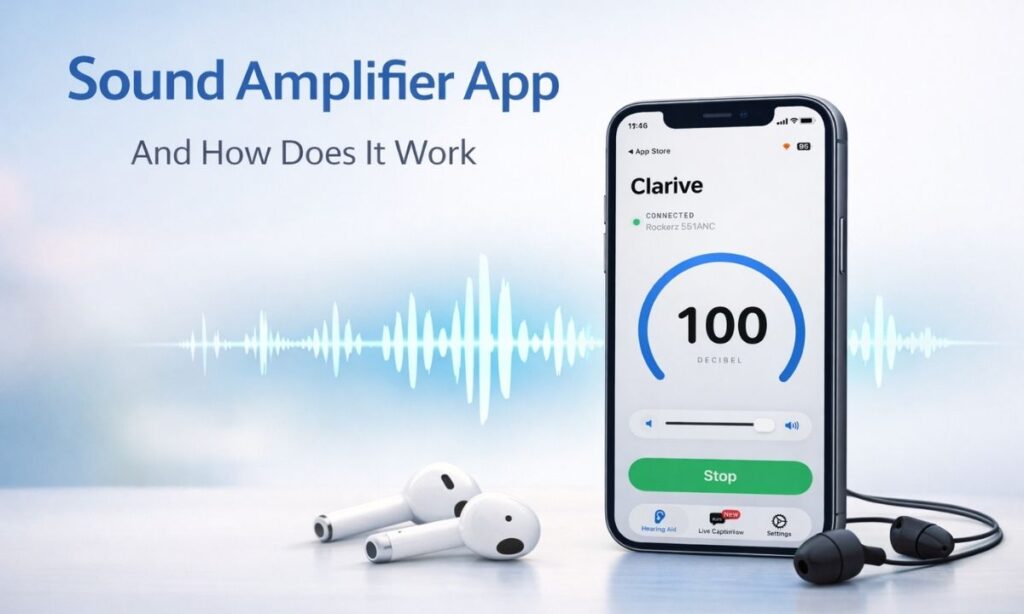
The best option right now is Listening Device: Clarive.
What Clarive Does
- Amplifies sound in real time through your earphones
- Shows live captions on screen so you never miss a word
- Works completely offline – no internet or account needed
- Compatible with any wired or wireless earphones
Clarive is not just another hearing aid app. It is a practical, everyday tool designed for people who need clear sound without the cost or complexity of a clinical hearing aid.
iPhone Hearing Aid App Review – Why Clarive Stands Out
Most hearing aid apps either require Bluetooth pairing with specific devices or need a constant internet connection. Clarive does neither.
You open the app. You connect your earphones. You hear better. That is the entire process.
Users consistently highlight three things in reviews:
- How fast it works – no delay, no setup frustration
- How clear the live captions appear during real conversations
- How comfortable it feels to use discreetly in public
Free plan includes up to 5 uses per day at no cost. Pro plans start at $5.99 per month or $24.99 per year with a free trial included.
How to Use iPhone as Hearing Aid – Step by Step
You have two paths depending on what you need.
Path 1 – You Own a Hearing Aid
- Go to Settings → Accessibility → Hearing Devices
- Pair your Made for iPhone compatible hearing aid
- Adjust volume and programs directly from your iPhone
- Use the brand app for advanced control
Path 2 – You Do Not Own a Hearing Aid
- Download Listening Device: Clarive from the App Store
- Connect any earphones to your iPhone
- Open the app and tap to start amplification
- Turn on Live Caption if you need on-screen text
No hearing aid required. No prescription. No waiting.
Common iPhone Hearing Aid Problems – Solved
Why Is My Hearing Aid Not Connecting to My iPhone?
This is the most common issue and usually has a simple fix:
- Make sure Bluetooth is turned on
- Restart both your iPhone and your hearing aid
- Put the hearing aid back into pairing mode
- Go to Settings → Accessibility → Hearing Devices and try again
If it still does not connect, go to Settings → Bluetooth → find your hearing aid → tap the i icon → Forget This Device – then re-pair from scratch.
How to Adjust Hearing Aid Volume on iPhone
- Open Control Center
- Tap the hearing icon
- Slide the volume bar for left and right ears independently
How to Turn Off Hearing Aid Mode on iPhone
- Go to Settings → Accessibility → Hearing Devices
- Tap your device name
- Select Disconnect or simply turn off Bluetooth
How to Find a Lost Hearing Aid on iPhone
If your hearing aid brand supports location tracking, open the brand app – Starkey’s Thrive app for example – and use the Find My Hearing Aid feature. Not all brands support this, so check your specific app.
How to Disconnect Hearing Aid From iPhone
- Go to Settings → Bluetooth
- Find your hearing aid in the list
- Tap the i icon → tap Disconnect
How to Turn On Hearing Aid Mode on iPhone
There is no single switch labeled hearing aid mode. What people usually mean is one of these:
- Enabling Live Listen through Control Center
- Pairing a hearing aid through Settings → Accessibility → Hearing Devices
- Turning on Headphone Accommodations under Settings → Accessibility → Audio/Visual
All three are ways your iPhone supports clearer hearing – each serving a slightly different need.
Conclusion
Your iPhone has more hearing support built into it than most people realize. From Made for iPhone hearing aid compatibility with brands like Starkey, Oticon, Phonak, ReSound, and Signia – to built-in features like Live Listen and Headphone Accommodations – the tools are already there.
And if you do not own a hearing aid at all, an app like Listening Device: Clarive gives you real-time amplification and live captions in under a minute – no device, no doctor, no delay.
Key takeaways from this article:
- iPhone hearing aid settings live in Settings → Accessibility → Hearing Devices
- Made for iPhone hearing aids pair directly via Bluetooth with no extra adapter
- Live Listen turns AirPods into a remote microphone – completely free
- Clarive is the best iPhone hearing aid app for people without a clinical device
- Most connection problems are solved by restarting and re-pairing
You do not have to miss another conversation. Start with what you have – your iPhone – and go from there.
Ready to hear more clearly today? Download Listening Device: Clarive and try it free. No setup. No commitment. Just better sound.
FAQs
What is an iPhone hearing aid and how does it work?
An iPhone hearing aid refers to using your iPhone to support hearing – either by connecting a compatible hearing aid via Bluetooth or using an amplification app like Clarive with any earphones.
Where is the hearing aid setting on iPhone?
Go to Settings → Accessibility → Hearing Devices. This is where you pair, control, and adjust any Made for iPhone compatible hearing aid directly from your phone.
What does Made for iPhone hearing aid mean?
It means the hearing aid is certified to connect directly to your iPhone via Bluetooth without extra adapters. Brands like Starkey, ReSound, Oticon, Phonak, and Signia offer Made for iPhone models.
How do I connect my ReSound hearing aid to my iPhone?
Open and close the battery door to activate pairing mode, then go to Settings → Accessibility → Hearing Devices and tap your ReSound device name when it appears.
How do I pair my Oticon hearing aid with iPhone?
Put your Oticon hearing aid in pairing mode by opening the battery door, then navigate to Settings → Accessibility → Hearing Devices and select your Oticon device to complete pairing.
Why is my hearing aid not connecting to my iPhone?
Check that Bluetooth is on, restart both devices, and put the hearing aid back in pairing mode. If it still fails, forget the device in Bluetooth settings and re-pair from the beginning.
Can I use iPhone hearing aid features with AirPods?
Yes. The Live Listen feature streams sound directly to your AirPods in real time. Enable it through Control Center by adding the Hearing shortcut in Settings → Control Center.
Is there a free hearing aid app for iPhone?
Yes. Listening Device: Clarive offers free access up to five times per day with no account or internet required. Pro plans unlock unlimited use starting at $5.99 per month.
How do I adjust hearing aid volume on iPhone?
Open Control Center and tap the hearing icon. You can adjust volume for the left and right ears separately without touching your hearing aid physically.
How do I find a lost hearing aid using my iPhone?
Some brands like Starkey support location tracking through their companion app. Open the brand app and look for a Find My Hearing Aid or similar feature to locate your device.